Still cover upload
One picture and the audio. Quick to post, but nothing on screen moves and it only fits a wide player.
You finished the song, and now it needs something to watch. The best AI music video generator for that job takes your track and your own pictures and gives back a video you can post, with no camera and no editing timeline. The freemusic Music Visualizer is free to try in your browser.
Open the Music Visualizer
Plenty of musicians release with a still cover because the video feels like a second project. Here is what each option gives a listener, and where the best AI music video generator on freemusic fits.
One picture and the audio. Quick to post, but nothing on screen moves and it only fits a wide player.
Your cover or a photo with a sound wave that reacts to the track, captions if you want them, in 16:9 or 9:16.
Several of your images shown across the song with a Photo Style applied, for a set of shots from a show or a trip.
Performers, locations and a crew. That is a different job: freemusic does not film or stage people.
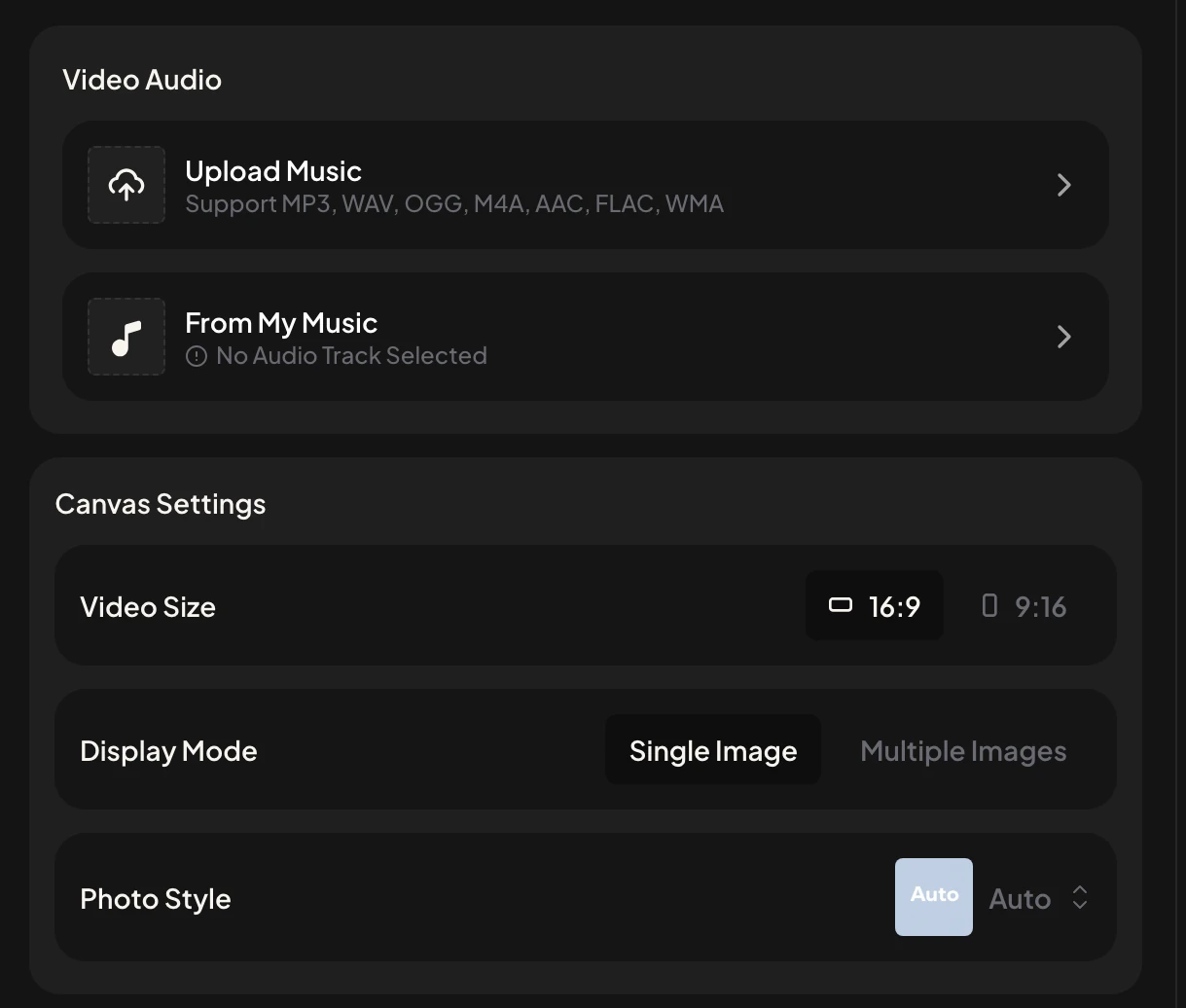
Using the best AI music video generator on freemusic comes down to four choices in one panel. This is the panel you will see.
Choose Upload Music for an MP3, WAV, OGG, M4A, AAC, FLAC or WMA file, or pick a track you already made under From My Music.
Pick Video Size 16:9 for YouTube and other wide players or 9:16 for vertical feeds, then choose Single Image or Multiple Images.
Upload your cover art or photos. Leave Photo Style on Auto or choose another look.
Switch captions on with a style and a Top, Middle or Bottom position, turn on the sound wave, then sign in and generate.
One release often needs two shapes: a wide video for YouTube and a vertical one for short video feeds. Video Size switches between them.
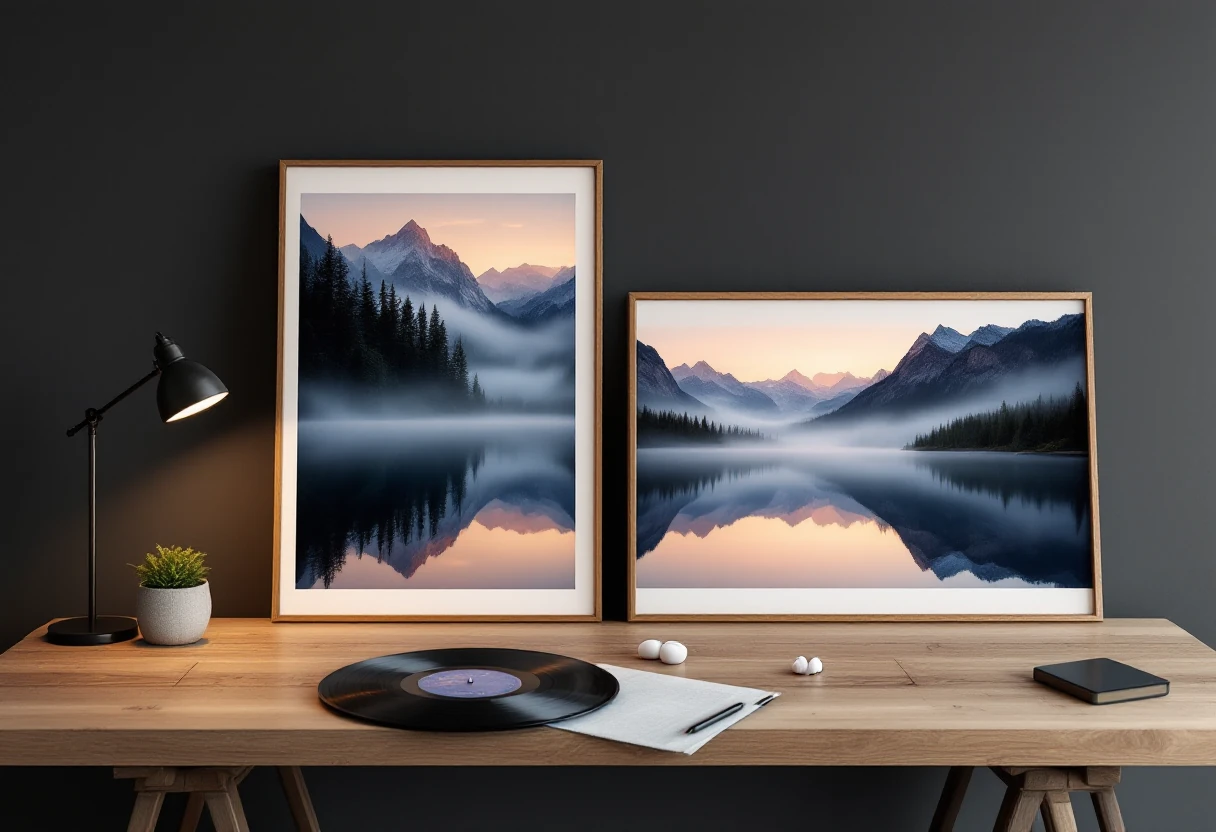
Fits YouTube, a website embed or a TV screen. Landscape photos and square cover art with space around them sit well here.
Fills a phone held upright, the shape Shorts, Reels and TikTok expect. Portrait photos read best.
Make each shape as its own video from the same song and pictures.
Display Mode decides how the best AI music video generator lays out your pictures. The other settings shape the frame around them.
One picture stays on screen for the whole track, usually your cover art, with the sound wave reacting over it.
Several photos appear in turn across the song, so a photo set from a gig or a tour carries the video.
Auto by default. Pick another style when you want the pictures to share one look.
On or off, a style such as Simple Outline, and a Top, Middle or Bottom position on the frame.
A reactive wave that moves with the audio. Turn it off when you want only the images.
Want a photo-led video with more control over the pictures? Try the Photo Video Maker or read how the Music Video Maker matches transitions to your song.
Before you pick the best AI music video generator for a release, check it against these points. Here is how freemusic answers each one.
If the song is finished and you want a video built from your own images, it is a simple fit: upload the track, add pictures, pick 16:9 or 9:16, then add captions and a sound wave. It does not film performers or create story videos.
MP3, WAV, OGG, M4A, AAC, FLAC and WMA. You can also pick a track you made earlier from My Music.
Yes. Set Video Size to 9:16 for vertical feeds, or 16:9 for YouTube and other wide players.
Yes. Open the Music Visualizer and set up your video for free. You sign in when you are ready to generate it.
No. It builds the visuals around the audio you bring, and none of the settings edit the music.
Choose Multiple Images in the Music Visualizer, or open the Photo Video Maker for a photo-led video.
Bring your finished song and a few pictures. The best AI music video generator on freemusic handles the rest, and it is free to try.
Open the Music Visualizer